redpencil/deliver-email-service repository overview
Table of content
Description
Service used for processing emails. It uses a cron job to periodically look for emails that need to be send. Emails are send using Nodemailer.
Docker-image: https://hub.docker.com/repository/docker/redpencil/deliver-email-service
Docker-compose
To use the service add the following to your docker-compose.yml file
deliver-email-service:
    image: redpencil/deliver-email-service:latest
    environment:
      MAILBOX_URI: 'http://data.lblod.info/id/mailboxes/1'
Models
Mailbox

Folder

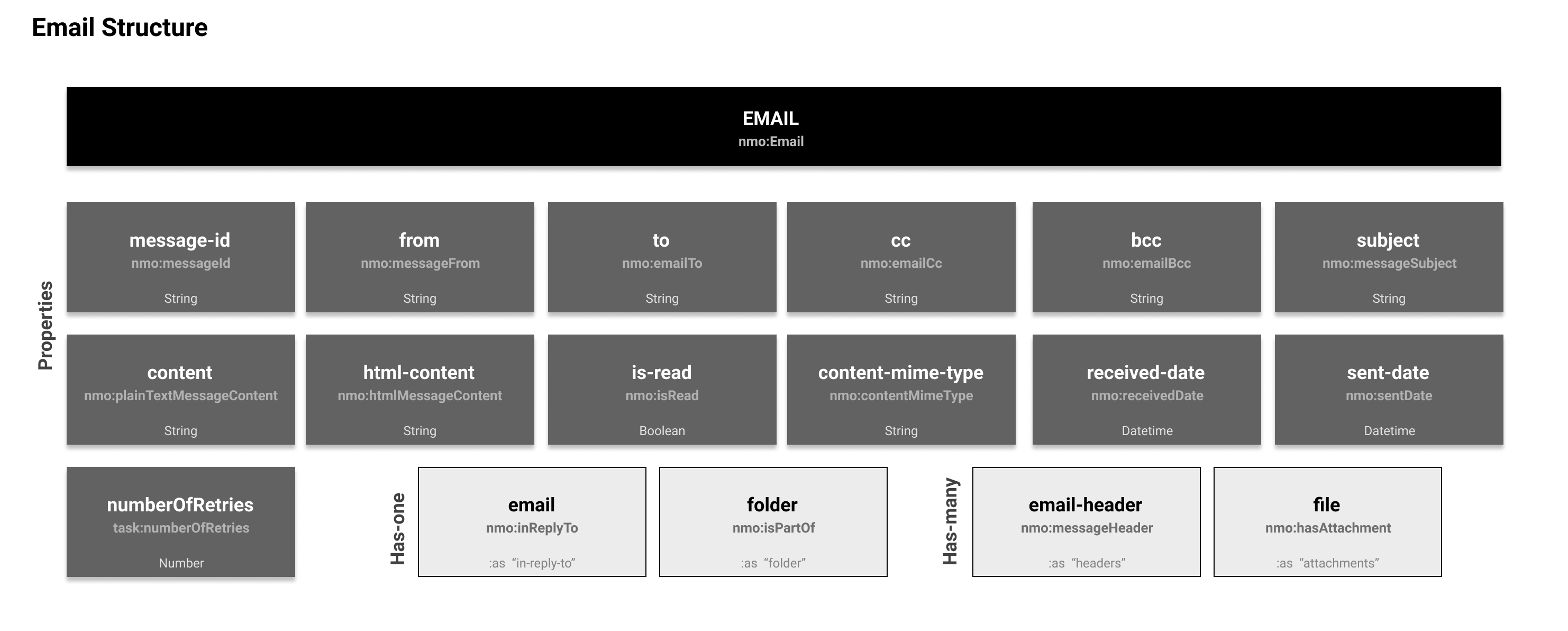
Attachments
Attachments are linked through nmo:hasAttachment property on the email.
The model of the attachment itself is based on NEPOMUK and the conventions used for the mu-semtech/file-service
Example Structure
This service expects a certain structure in the database to exist. By default it searches for an "outbox" folder to find the emails that need to be send, when mails fail to send the service will move them to the "failbox" folder... You can modify this structure in the code as needed but in case you want to use the default, then you can migrate the following file to the database: Migration file
If you havent yet worked with the migration service then you can find a detailed explanation on how to migrate a file to your database HERE.
The migration file is included by default when using the example/test app: app-deliver-email When the file has succesfully migrated to your database, then the mailbox & folder structure in the backend should look like this:

Emails & header boxes are displayed only for illustration purposes. They dont come included in the migration file. There is a usefull query at the bottom of this readme to create (test) emails.
Ontology & Prefixes
This deliver-email-service is build around the Nepomuk Message Ontology
Environment Variables
The following environment variables can be added to your docker-compose file. You can find the list below sorted by which subject they are closest related to.
Database
| ENV | Description | default | required |
|---|---|---|---|
| MAILBOX_URI | Specify the uri of the mailbox that you want to manipulate | null | X |
Emails
| ENV | Description | default | required |
|---|---|---|---|
| EMAIL_CRON_PATTERN | Pattern describing when a new cron job should trigger. usefull: cron-pattern-generator | * * 1 * * * | |
| SECURE_CONNECTION | if true the connection will use TLS when connecting to server. If false (the default) then TLS is used if server supports the STARTTLS extension. In most cases set this value to true if you are connecting to port 465. For port 587 or 25 keep it false | false | |
| EMAIL_PROTOCOL | Choose which protocol you want te use to send the e-mails. Only available option is "smtp" | "smtp" | |
| HOURS_DELIVERING_TIMEOUT | Timeout after which the service will stop retrying to send the e-mail after it has failed | 1 | |
| HOURS_SENDING_TIMEOUT | Timeout after which emails in the sending box will be either retried or moved to the failbox | .5 | |
| MAX_BATCH_SIZE | Max amount of emails allowed to be send in parallel. Its recommended not to set this number too high as it can overload the database. | 10 | |
| MAX_RETRY_ATTEMPTS | Max amount of times an email will be tried to resend after it fails | 5 | |
| WELL_KNOWN_SERVICE | Specify the email service you will be using to send the emails. Options: list or "test" | " " | x |
| FROM_NAME | Name that will be displayed to receiver of the e-mail | " " | |
| EMAIL_ADDRESS | E-mail address from sender | null | unless "test" |
| EMAIL_PASSWORD | Password from sender (api-key if service is SendGrid) | null | unless "test" |
| ERROR_LOGS_GRAPH | Graph where your error logs will be stored | "http://mu.semte.ch/graphs/public" | |
| LOG_ERRORS | If true, will log the error message in the database when an email was send but returned an error | false | |
| HOST | Is the hostname or IP address to connect to. | null | unless "test" |
| PORT | is the port to connect to (defaults to 587 if "SECURE_CONNECTION" is false or 465 if true) | null |
debugging
| ENV | Description | default | required |
|---|---|---|---|
| NODE_ENV | Choose your node environment. options: "production" or "development" | "production" |
Development
This will show you how to setup a development environment so you can take advantage of features and tools like live reload & chrome debugger tool;
Optional:
You might want to go through the testing section first if you want to test your mails using a temporary mailbox
Backend
If you already have a backend you want to use for development then you can ignore this, otherwise we have a development backend available that is already configured and has the example structure migrations file to get you up and running quickly. Follow the readme file of the following repo:
Docker-compose
As the image has been build using the mu-javascript-template, you will be able to setup a development environment with chrome debugging. To get started quickly, change the deliver-email-service in your docker-compose file to this:
  deliver-email-service:
    image: redpencil/deliver-email-service:0.1.3
    ports:
      - 8888:80
      - 9229:9229
    environment:
      MAILBOX_URI: 'http://data.lblod.info/id/mailboxes/1'
      SECURE_CONNECTION: "true"
      NODE_ENV: "development"
      WELL_KNOWN_SERVICE: "myservice"
      EMAIL_ADDRESS: "[email protected]"
      EMAIL_PASSWORD: "myemailpassword"
      FROM_NAME: "myname"
    labels:
      - "logging=true"
    restart: always
    volumes:
      - ./data/files:/share
      - /path/to/local/cloned/deliver-email-service/folder/:/app/ (for debugging purposes)
    logging: *default-logging
Don't forget to change WELL_KNOW_SERVICE, EMAIL_ADDRESS, EMAIL_PASSWORD & FROM_NAME to your own + volume paths.
Testing
Testing environment will create a temporary ethereal mailbox where you can inspect the email.
important to know: This will not ACTUALLY send the emails. This will only act as if the email has been send and received. The specified receiver will not receive the emails nor will the sender actually send the email from their own email address. In reality you can enter any (random) sender email address and (random) receiver address and it will still work.
Backend
If you already have a backend you want to use for development then you can ignore this, otherwise we have a development backend available that is already configured and has the example structure migrations file to get you up and running quickly. Follow the readme file of the following repo:
Docker-compose
You can easily inspect the mails by changing the WELL_KNOWN_SERVICE in your docker-compose file to "test"
  deliver-email-service:
    image: redpencil/deliver-email-service:0.1.3
    environment:
      MAILBOX_URI: 'http://data.lblod.info/id/mailboxes/1'
      WELL_KNOWN_SERVICE: "test"
      FROM_NAME: "RedPencil"
When creating an email in the database (see useful queries) the email will go through the same process as it would when sending an email in the non-testing environment. The main difference being that the service will create a temporary generated ethereal mailbox for you where you can view your send emails. At the end of each send email, the logs will display a preview url:
> EMAIL 3: Preview url https://ethereal.email/message/123456788abcdefg
When clicking on the link you will be redirected to the temporary generated mailbox where you can inspect the contents of the mail. You do not have to worry about it spamming your own or any other mailbox when the test protocol is set.
REST API
POST /email-delivery Initiate a new email-delivery cycle asynchronously.
Returns 202 Accepted if the email-delivery process started successfully.
Returns 204 No Content if the email-delivery got triggered but no emails where found that need to be send.
Returns 500 Bad Request if something unexpected went wrong while initiating the email-delivery process.
Useful
Manually triggering the service
Add the following snippet to your dispatcher file.
 post "/email-delivery/*path" do
   Proxy.forward conn, path, "http://deliver-email-service/email-delivery/"
 end
You can now use postman to send a post request to the '/email-delivery' endpoint or you can run the following command in your terminal.
wget --post-data='' http://localhost/email-delivery/
Do not forget to remove this before deploying to production
Useful Queries
Creating an email
PREFIX nmo: <http://www.semanticdesktop.org/ontologies/2007/03/22/nmo#>
PREFIX nie: <http://www.semanticdesktop.org/ontologies/2007/01/19/nie#>
PREFIX nfo: <http://www.semanticdesktop.org/ontologies/2007/03/22/nfo#>

INSERT DATA {
  GRAPH <http://mu.semte.ch/graphs/system/email> {

    <http://data.lblod.info/id/emails/1> a nmo:Email;
        nmo:messageFrom "[email protected]";
        nmo:emailTo "[email protected]";
        nmo:emailCc "[email protected]";
        nmo:emailBcc "[email protected]";
        nmo:messageSubject "Email deliver service";
        nmo:plainTextMessageContent "I really like this service! But when encountering bugs, its important           to create an issue in the repo so it can get resolved";
        nmo:sentDate "";
        nmo:isPartOf <http://data.lblod.info/id/mail-folders/2>.
 }
}
You will want to modify http://data.lblod.info/id/emails/1 after each inserted mail otherwise you will create duplicates. e.g. http://data.lblod.info/id/emails/2, http://data.lblod.info/id/emails/3 etc..
Tracking mails
PREFIX nmo: <http://www.semanticdesktop.org/ontologies/2007/03/22/nmo#>
PREFIX nie: <http://www.semanticdesktop.org/ontologies/2007/01/19/nie#>
PREFIX task: <http://redpencil.data.gift/vocabularies/tasks/>

  SELECT  ?email
     ?messageSubject
     ?messageFrom
     ?emailTo
     ?emailCc
     ?messageId
     ?plainTextMessageContent
     ?htmlMessageContent
     ?sentDate
     ?folder
     ?numberOfRetries

   WHERE {
     GRAPH <http://mu.semte.ch/graphs/system/email> {
       <http://data.lblod.info/id/mailboxes/1> nie:hasPart ?mailfolder.
       ?mailfolder nie:title ?folder.
       ?email nmo:isPartOf ?mailfolder.
       ?email nmo:messageSubject ?messageSubject.
       ?email nmo:messageFrom ?messageFrom.
       ?email nmo:emailTo ?emailTo.

       BIND(0 as ?defaultRetries).
       OPTIONAL {?email task:numberOfRetries ?optionalRetries}.
       BIND(coalesce(?optionalRetries, ?defaultRetries) as ?numberOfRetries).

       BIND('' as ?defaultEmailCc).
       OPTIONAL {?email nmo:emailCc ?optionalEmailCc}.
       BIND(coalesce(?optionalEmailCc, ?defaultEmailCc) as ?emailCc).

       BIND('' as ?defaultmessageId).
       OPTIONAL {?email nmo:messageId ?optionalMessageId}.
       BIND(coalesce(?optionalMessageId, ?defaultmessageId) as ?messageId).

       BIND('' as ?defaultPlainTextMessageContent).
       OPTIONAL {?email nmo:plainTextMessageContent ?optionalPlainTextMessageContent}.
       BIND(coalesce(?optionalPlainTextMessageContent, ?defaultPlainTextMessageContent) as ?plainTextMessageContent).

       BIND('' as ?defaultHtmlMessageContent).
       OPTIONAL {?email nmo:htmlMessageContent ?optionalHtmlMessageContent}.
       BIND(coalesce(?optionalHtmlMessageContent, ?defaultHtmlMessageContent) as ?htmlMessageContent).

       BIND('' as ?defaultSentDate).
       OPTIONAL {?email nmo:sentDate ?optionalSentDate}.
       BIND(coalesce(?optionalSentDate, ?defaultSentDate) as ?sentDate).

     }
   }
GROUP BY ?email ?messageSubject ?messageFrom ?messageId ?plainTextMessageContent ?htmlMessageContent ?sentDate ?numberOfRetries
Tag summary
Content type
Image
Digest
sha256:e35e8f607…
Size
494.4 MB
Last updated
4 months ago
docker pull redpencil/deliver-email-service